¶ Whiteboard internal coordinate system
The sdk whiteboard is infinite content, with the center of the initial point as the center, it extends infinitely in four directions, and allows the user to move and zoom the whiteboard through the mouse wheel, gestures, etc. In order to define the location of the content that the user is watching, sdk introduces the concept of whiteboard internal coordinate system.
Whiteboard internal coordinate system: When the whiteboard is initialized, the middle point of the whiteboarddivis the coordinate origin, the positive direction of X-axis is rightward, and the positive direction of Y-axis is downward.
¶ Coordinate Conversion API
Because the internal coordinate system of the whiteboard is different from the traditional method where the upper left corner is the coordinate origin (the XY axis is the same), and it is difficult to know the current position after the user zooms and moves. sdk provides the following API, the API accepts a coordinate with the upper left corner of the whiteboard div as the origin of the coordinates, and returns the position of the point in the whiteboard's internal coordinate system (this coordinate is affected by movement and zooming).
convertToPointInWorld(point: {x: number, y: number}): {x: number, y: number};
¶ Host mode
Since all users can watch the content in different positions of the whiteboard by moving, zooming, etc., in order to meet the needs of all users to watch the same location, sdk adds the function of host mode.
After using room.setViewMode("broadcaster") to set a user in the room as the host, other users will automatically enter the viewer mode. sdk will use zoom to move the whiteboard of users in audience mode (hereinafter referred to as audience) to ensure that the audience can see the complete content presented by the host user (hereinafter referred to as anchor).
¶ The audience content is redundant with the anchor
Depending on the screen ratio of the audience and the host, the audience may see more content than the host.
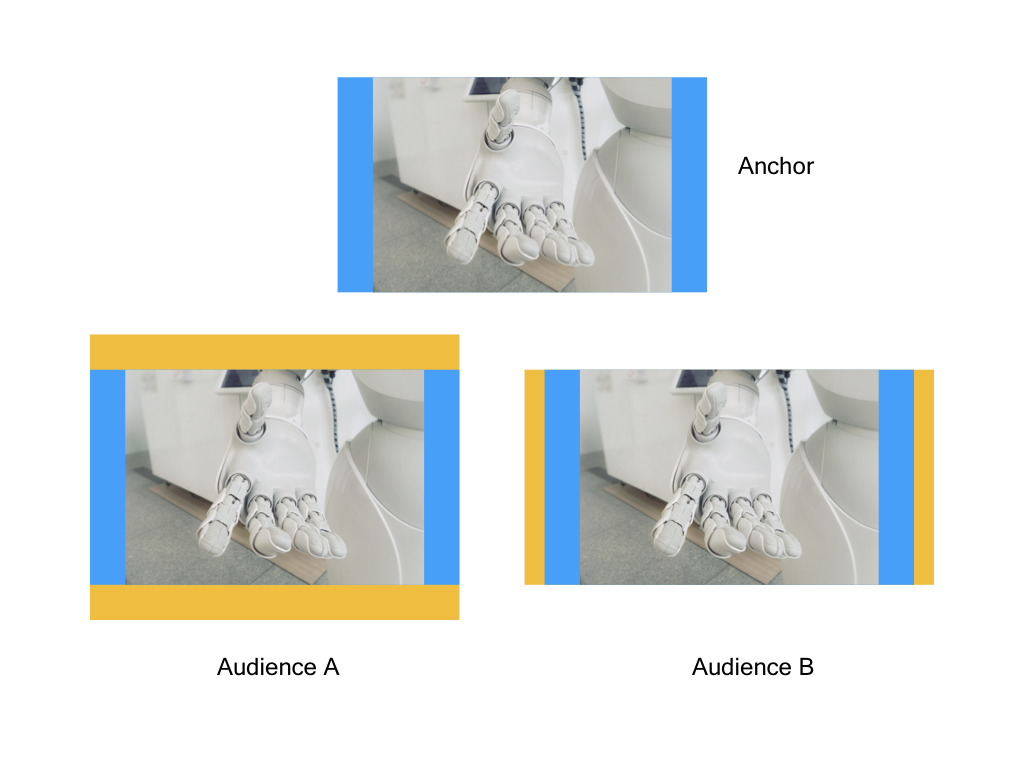
In the host mode, all the content seen by the host will be synchronized to the audience. However, the screen ratio on the audience side may be inconsistent with that on the host side. In order to fully display the content on the host side, zoom adjustments will be made.
Similar to when playing a movie, in order to maintain the original aspect ratio and retain the original content, on some monitors, proportional scaling is performed and black bars appear.
¶ Perspective Mode
As mentioned earlier, the user can be set as the host by room.setViewMode("broadcaster"). The previous introduction mainly introduced host, in fact, sdk has three perspective modes, namely host, audience, free (default)
The following are the parameters supported by setViewMode:
enum ViewMode {
    // free mode
    // The user can freely zoom and move the perspective.
    // Even if there is an anchor in the room, the anchor cannot affect the user's perspective.
    Freedom = "freedom",
    // Follow/Audience Mode
    // The user will follow the anchor's perspective. Wherever the anchor is watching, the user will follow.
    // In this mode, if the user zooms or moves the angle of view, it will automatically switch back to freedom mode.
    Follower = "follower",
    // Host mode
    // The perspective mode of other people in the room will be automatically modified to follower, and the user's perspective will be forced to watch.
    // If there is another anchor in the room, the anchor's perspective mode will also be forced to change to follower.
    Broadcaster = "broadcaster",
};
Audience/follow mode, any operation will automatically change to the
free modeand no longer follow the anchor. If you want to ensure that this behavior is prohibited, please prohibit all user operations through the 《Prohibited Operations》 API.
¶ Sample code
//Set the host, other users will automatically switch to follow mode (including new users)
room.setViewMode("broadcaster");
//Free, the user in follow mode will automatically switch to this mode once there is any operation
room.setViewMode("freedom");
//Follow mode
room.setViewMode("follower");
//Prohibit user operation, then switch to follower
room.disableOpertation = true;
room.setViewMode("follower");
¶ Get the current perspective status
// This type is one of the room status attributes, see [Status Management] document for details
type BroadcastState = {
    // Current user perspective mode
    // 1. "freedom" free perspective, the perspective will not follow anyone
    // 2. "follower" follows the perspective and will follow the speaker in the room
    // 2. "broadcaster" speaker's perspective, the perspective of other people in the room will follow me
    mode: ViewMode;
    // Room speaker ID.
    // If there is no speaker in the current room, it is undefined
    broadcasterId?: number;
    broadcasterInformation?: {
      // memberId of the host user
      id: number,
      // The payload attached when the host user joins the room
      payload?: any
    }
};
console.log(room.state.broadcastState);
// Output when there is currently no host
> {mode: "freedom", broadcasterId: undefined, broadcasterInformation: undefined}
¶ Adjust the perspective center
The SDK provides the moveCamera API to adjust the viewing angle. The parameters are optional. The SDK will adjust the viewing angle center and zoom ratio according to the input parameters.
¶ TypeScript definition
/// Displayer.d.ts
// room player general
// All are optional parameters, only modify existing fields
public moveCamera(camera: Partial<Camera> & Readonly<{animationMode?: AnimationMode}>): void;

export type Camera = {
    // The x coordinate of the center point of the whiteboard div relative to the internal coordinate system of the whiteboard
    readonly centerX: number;
    // The y coordinate of the center point of the whiteboard div relative to the internal coordinate system of the whiteboard
    readonly centerY: number;
    // The zoom ratio, the default is 1. >1 means zoom in (the visible range is reduced), <1 means zoom out (the visible range is enlarged)
    readonly scale: number;
};

export enum AnimationMode {
    // Continuous animation (default)
    Continuous = "continuous",
    // complete instantly
    Immediately = "immediately",
}
¶ Sample code
room.moveCamera({
  centerX: 237,
  centerY: 120,
  scale: 1.2,
  animationMode: "immediately"
})
¶ Covered ppt
/**
 * Scaling the ppt content in equal proportion to ensure that the current ppt is fully displayed in the current whiteboard.
 * This API is a one-time, only valid when the current page has ppt.
 */
public scalePptToFit(animationMode: AnimationMode = AnimationMode.Continuous): void;
¶ Adjust the field of view
Inside the whiteboard, there is a concept of visual rectangle (width and height + upper left corner coordinates) to indicate the area that the user must accommodate on the whiteboard. (It can be simply understood as field of view).
¶ TypeScript definition
moveCameraToContain(rectangle: Rectangle & Readonly<{animationMode?: AnimationMode}>): void;

// Visual Rectangle: All are the internal coordinate system data of the whiteboard
type Rectangle = {
    readonly width: number;
    readonly height: number;
    readonly originX: number;
    readonly originY: number;
};

enum AnimationMode {
    // Continuous animation (default)
    Continuous = "continuous",
    // complete instantly
    Immediately = "immediately",
}
¶ Sample code
¶ ppt full
// Cover the user's whiteboard with the ppt background image in the room
const width = room.state.sceneState.scenes[room.state.sceneState.index].ppt.width;
const height = room.state.sceneState.scenes[room.state.sceneState.index].ppt.height;

room.moveCameraToContain({
  originX:-width / 2,
  originY:-height / 2,
  width: width,
  height: height,
  // Animation is optional
  animationMode: "immediately" // 2.2.2 new API, continuous: continuous animation (default), immediately: instant completion
});
If the aspect ratio of ppt is inconsistent with the whiteboard
div,sdkwill adjust the user's finalvisual rectangleto ensure that the incoming range can be displayed completely. The logic of this behavior is similar to the processing logic when the whiteboard divs ofhostandaudienceare inconsistent.
¶ Go back to the origin and adjust the size of the visual rectangle
let width = 960;
let heigh = 480;
room.moveCameraToContain({
  originX:-width / 2,
  originY:-height / 2,
  width: width,
  height: height,
})
¶ Lock the perspective
This method will prohibit the user from actively modifying the perspective through actions such as mouse wheel zooming, gestures, and hand tools. However, teaching aids can still be used.
Developers can still modify the user's location through the moveCamera, moveCameraToContain API.
disableCameraTransform: boolean;
// Lock the perspective<span id = "disableCameraTransform">
room.disableCameraTransform = true;
// unlock perspective
room.disableCameraTransform = false;
¶ Limit the field of view
The field of view limit consists of three parts:
- Coordinate Center
- Width and Height
- Maximum and minimum limits
sdk first ensures that the user's field of view is limited to the range formed by the coordinate center + width and height, and then limits the user's zoom ratio through the maximum and minimum restrictions.
¶ TypeScript definition
/// Displayer.d.ts
// room player general
public setCameraBound(cameraBound: CameraBound): void;

// limit range
export type CameraBound = {
    // When the user moves out of the boundary, the resistance (0.0 ~ 1.0) felt.
    // 0 means no resistance, 1.0 cannot move out of the boundary. (After letting go, you must return to the limit)
    // The default is 0.75.
    readonly damping?: number;

//Limit the field of view
    // Generate the midpoint coordinates (internal coordinates) used for the calculation of the limit range, and combine with width and height to form the limit range
    // 0 if not passed, 0
    readonly centerX?: number;
    readonly centerY?: number;
    // The width and height of the limit range calculation,
    // If Infinity (default) is selected, it means that there is no restriction in this direction.
    readonly width?: number;
    readonly height?: number;
//Restrict the zoom in this range
    readonly maxContentMode?: ContentMode;
    // According to the above coordinates, width and height, the strategy of calculating the minimum field of view
    readonly minContentMode?: ContentMode;
};

// ContentMode can take the following values:

// The state when the viewing angle is enlarged to 1.2 times.
export contentModeScale(1.2);

// Fill mode: Enlarge the border until the long side of the viewing angle is on the short side of the border.
// The angle of view at this time ensures that everything seen in the screen is within the boundary.
// And things within the boundary are not necessarily in the picture.
export contentModeAspectFill()

// Fit mode: Enlarge the border until the short side of the viewing angle is on the long side of the border.
// The perspective at this time ensures that things within the boundary must be in the picture.
// But what you see in the picture is not necessarily within the boundary.
export contentModeAspectFit()

// In Fill mode, continue to enlarge the screen by 1.2 times.
export contentModeAspectFillScale(1.2)

// In Fit mode, continue to enlarge the screen 1.2 times.
export contentModeAspectFitScale(1.2)

// In Fit mode, fill a gap of 200 pixels on the side.
export contentModeAspectFitSpace(200)
¶ Code example
room.setCameraBound({
    centerX: 120,
    centerY: 320,
    width: 200,
    height: 300,
});
The above code will limit the viewing angle to a rectangle with (x: 120, y: 320) coordinates as its midpoint, a width of 200 and a height of 300.
If you want to cancel the viewing angle limit, you can execute the following code.
room.setCameraBound({
    centerX: 0,
    centerY: 0,
    width: Infinity,
    height: Infinity,
});
You can also set the initial viewing angle limit before joining the room.
whiteWebSdk.joinRoom({
    uuid: roomUUID,
    roomToken: roomToken,
    cameraBound: {
      centerX: 120,
      centerY: 320,
      width: 200,
      height: 300,
    },
});
Not only room can set the viewing angle limit, player can also.
player.setCameraBound({
    centerX: 120,
    centerY: 320,
    width: 200,
    height: 300,
});
Setting or initializing the viewing angle for the room only takes effect for you, and will not affect other users in the room.